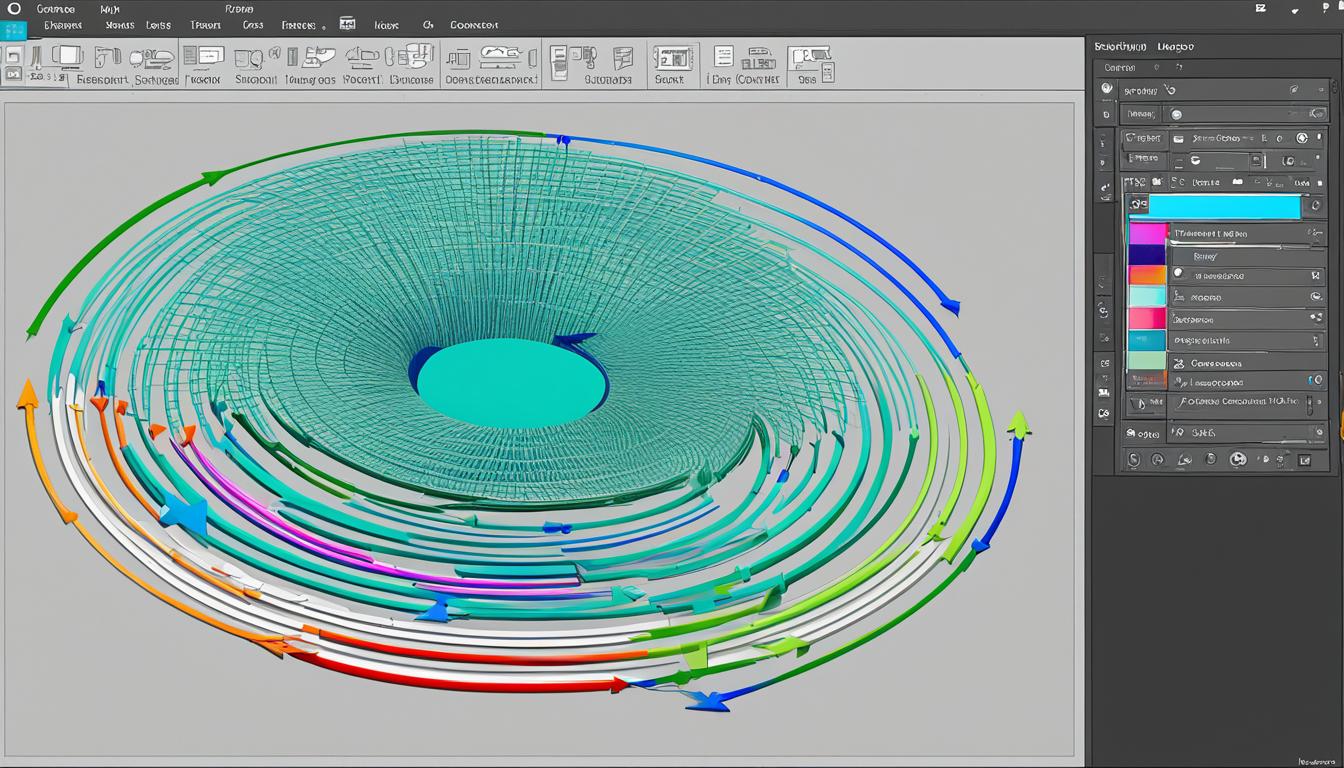
Learning to link layers in Photoshop is key if you want to make better designs. This guide will show you how to do it step by step. By linking layers, you’ll be more productive and have better control over your design projects. You’ll also see why it’s important for keeping everything together and making changes easily.
Knowing how to link layers makes it easy to edit your designs. Even if you change something, every layer stays connected. This makes your work more consistent. By the end, you’ll link layers without any trouble, no matter how complex your project is.
Key Takeaways
- Grasping the basics is the foundation for proficient layer management in Photoshop.
- Linking layers ensures connected and cohesive adjustments across multiple layers.
- Efficiency in design workflow is significantly enhanced through effective layer linking.
- Advanced techniques, including linking adjustment layers, offer greater control over editing outcomes.
- Streamlined management and organization of layered groups are achievable with mastery in linking techniques.
Understanding Layer Selection and Linking Basics
Learning how to select and link layers in Photoshop is key for designers. It makes editing more accurate and improves project speed.
Selecting Individual and Multiple Layers
Choosing the right layer is the heart of using Photoshop. You can work on one or many at a time. This is vital for any in-depth editing or combining images.
The Importance of Active Layers in Editing
Active layers are what you’re working on right now. Making sure you know which layers are active is crucial. This way, your changes go exactly where you want, making your work better.
Grouping and Organizing Layers for Efficiency
Grouping layers together helps keep your work tidy. It makes editing easier and your area cleaner. This is especially useful when projects get really big.
Why Link Layers in Your Photoshop Projects?
Linking layers is loved by experts for a reason. It lets you change many layers at once, saving time. This helps keep your designs looking just right.
| Feature | Benefit |
|---|---|
| Layer Selection | Enables targeted adjustments on specific layers |
| Active Layers | Allows real-time feedback and adjustments |
| Layer Grouping | Improves file organization, making workflow more manageable |
| Linking Layers | Edits multiple layers simultaneously for consistent results |
Getting good at selecting, managing layers, grouping, and linking helps designers do better work.
How to Link Layers in Photoshop
Understanding how to link layers in Photoshop is key for good design work. This step-by-step guide to linking layers teaches you easily and quickly.
-
Select the layers you want to link. Click on them in the Layers panel or use shortcuts to pick more than one.
-
After selecting your layers, look for the chain link icon at the panel’s bottom. Clicking it will link the layers together.
-
Now, the layers will act like one. They’ll keep their positions even if you change other layers. This stays the same even if you work on just one layer from the linked group.
-
To separate the layers, pick the linked ones again and click the chain link icon once. This breaks the link between them.
With this guide, linking layers lets you handle many layers like they’re one. This is great for big design projects.
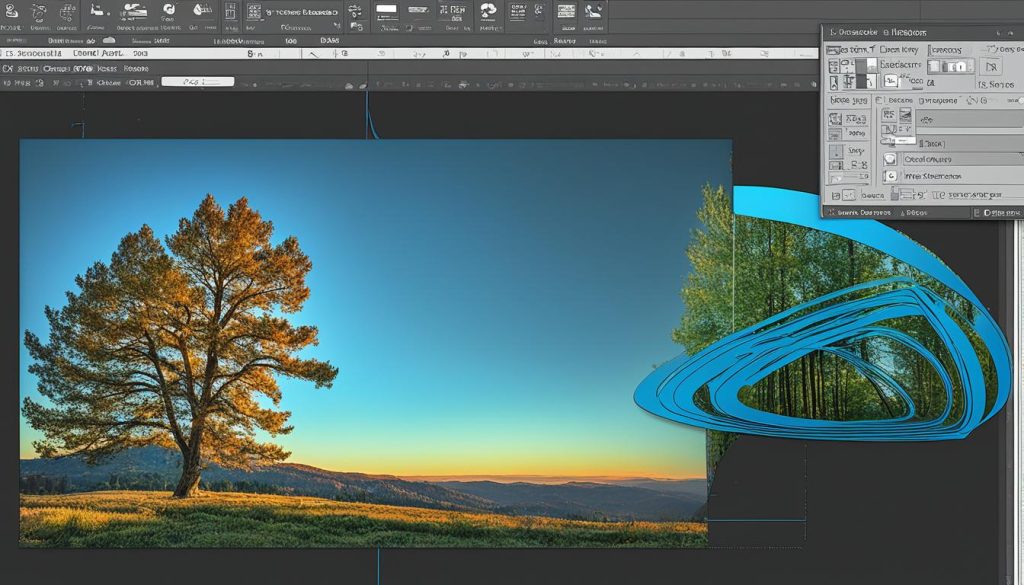
By following these simple steps on how to link layers, your work will get better. You’ll have more say over your designs in Photoshop, a must for experts.
Advanced Techniques: Linking Adjustment Layers and Managing Linked Groups
Learning how to manage layers in Photoshop makes your edits better and your work faster. Linking adjustment layers is key. It means the layer above affects the one below, so your changes are smooth and clear.
Grouping linked layers is important for both photographers and designers. It keeps things tidy in Photoshop, letting you control many layers at once. This is key for keeping everything in your project consistent when using the same settings or adding pictures together.
Mastering these advanced skills boosts your control over your project. By linking layers and managing groups well, you can edit faster and better. This means more professional work in less time, opening up new creative paths.